IntelliTasks for sales teams

Keep every deal moving and every follow-up on time

Track the pipeline on a board, see which accounts have gone quiet, and review the week with numbers instead of a long meeting.

Start free trial

14-day trial. No card required.

  • Quiet deals surface on their own
  • Nudge the owner
  • See the pipeline by stage
Use cases

How sales teams use IntelliTasks

See it work

Three moments from a sales team's week

Short clips recorded in IntelliTasks with sample data. The board columns are a suggestion: they can be renamed and reordered to match how your team works.

A Copperleaf Foods deal card is dragged from Leads through Qualified, Proposal and Negotiation to Won, where it is marked Done.
  1. Leads
  2. Qualified
  3. Proposal
  4. Negotiation
  5. Won

A pipeline board the whole team can read

Each opportunity is a card, and the columns are the stages of your sales process. Filter by owner, priority or label to see one person's deals or only the urgent ones.

  • Drag and drop between renamable columns
  • Filters for assignee, priority and label
  • Estimates, due dates and comments on every card
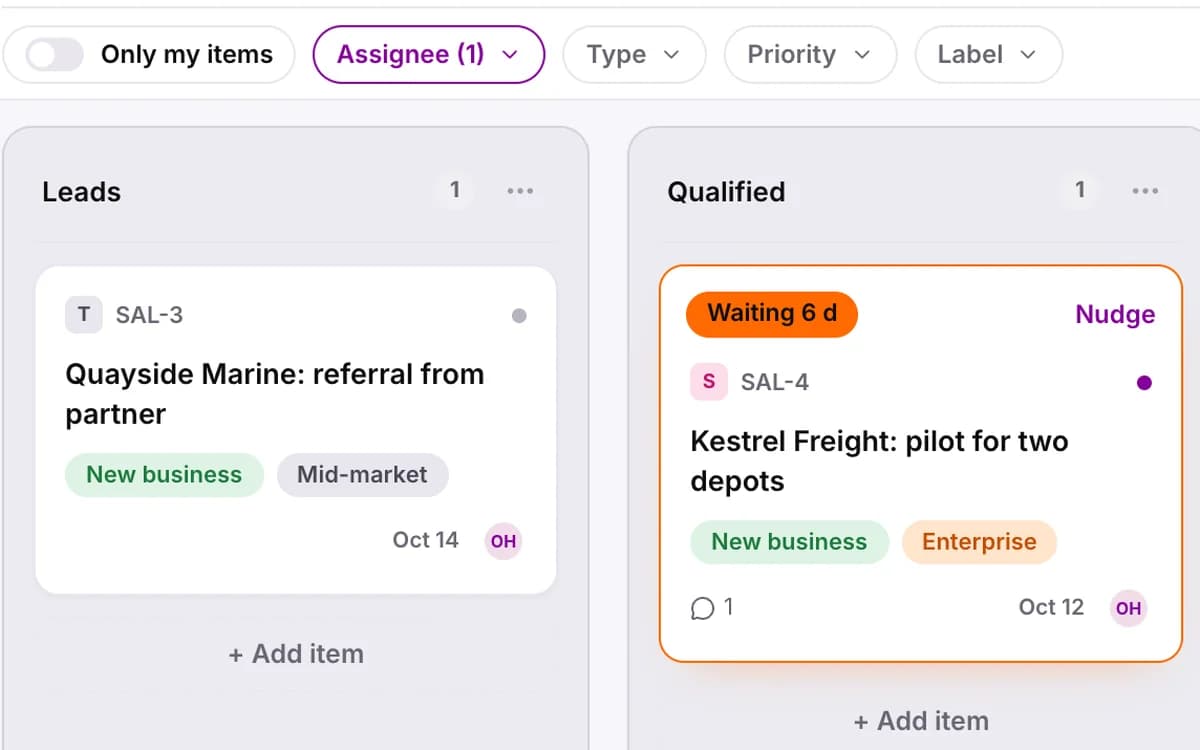
Close-up of the Q4 Pipeline board filtered to one account owner: the Assignee filter above that owner's deals in Leads and Qualified.

Catch quiet accounts before they go cold

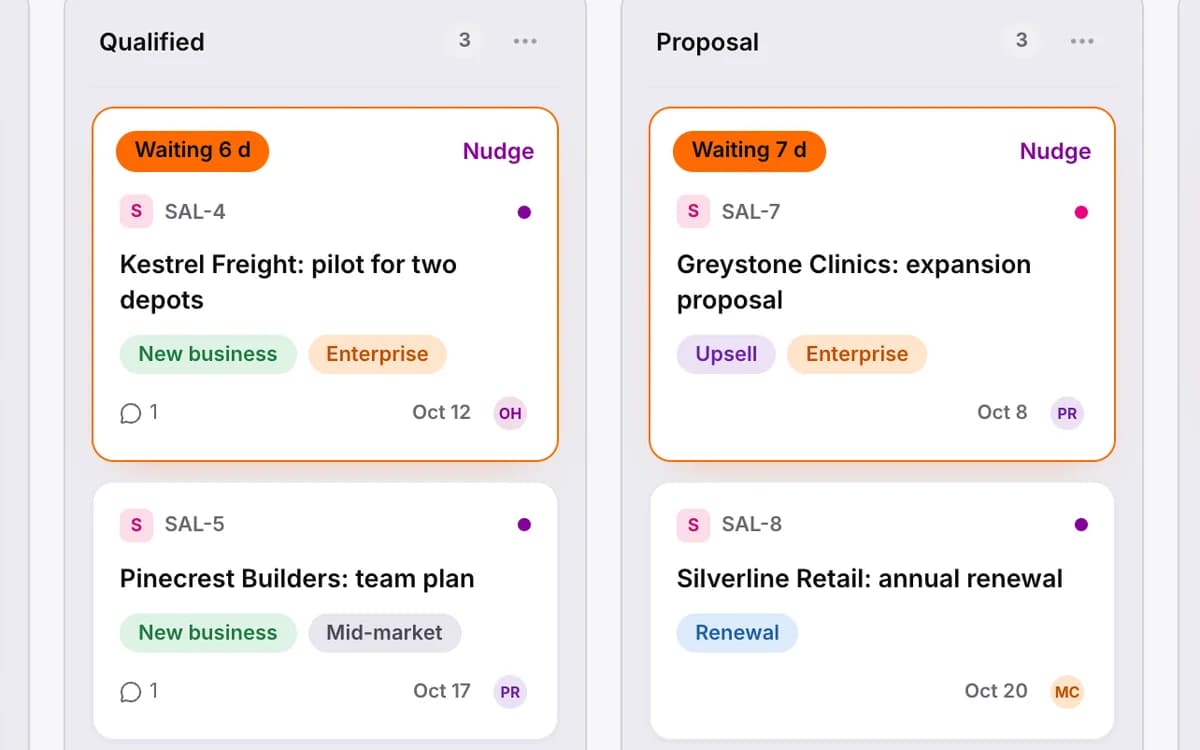
Any open item with no update for more than 5 days is flagged as Waiting too long on its card. Insights counts these items for the last 7, 30 or 90 days, shows how many deals sit in each stage, and Nudge all sends one reminder to each person with a flagged item.

  • Waiting too long count in Insights
  • Nudge all from Insights, or Nudge from a flagged card
  • Where work sits: open items per stage
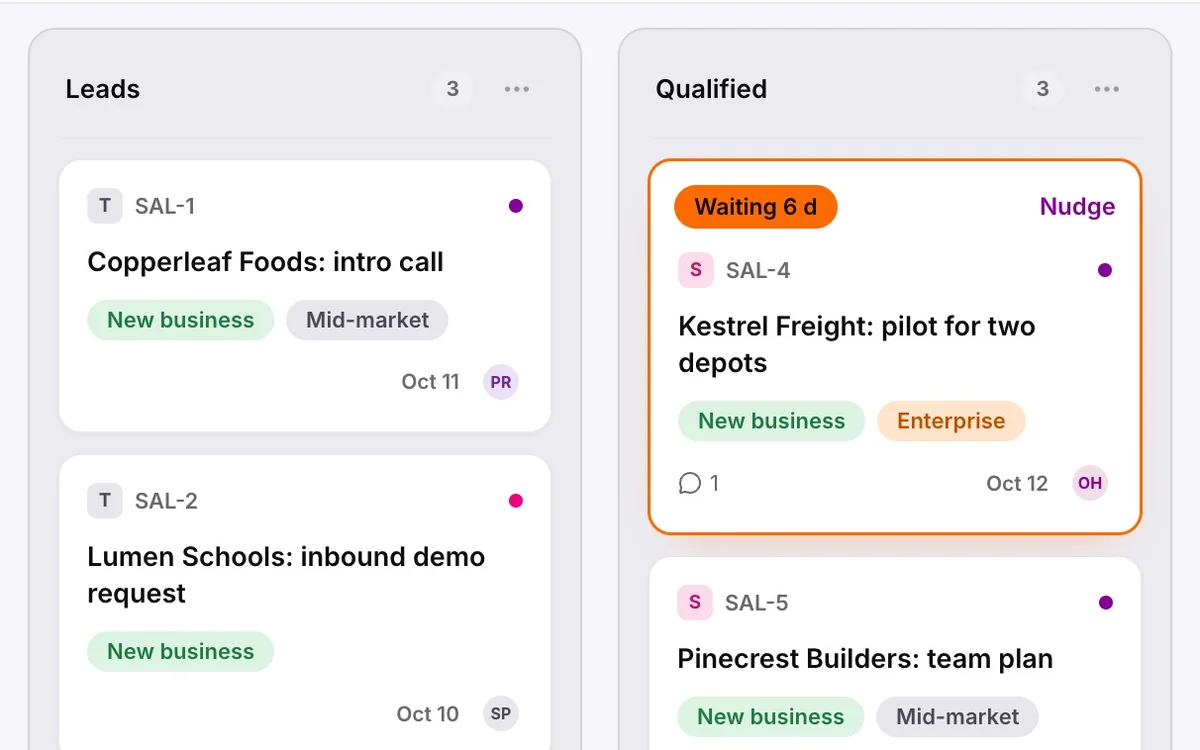
Close-up of the Qualified and Proposal columns of the pipeline board: two deals flagged Waiting 6 d and Waiting 7 d, each with a Nudge button.

Review the week deal by deal

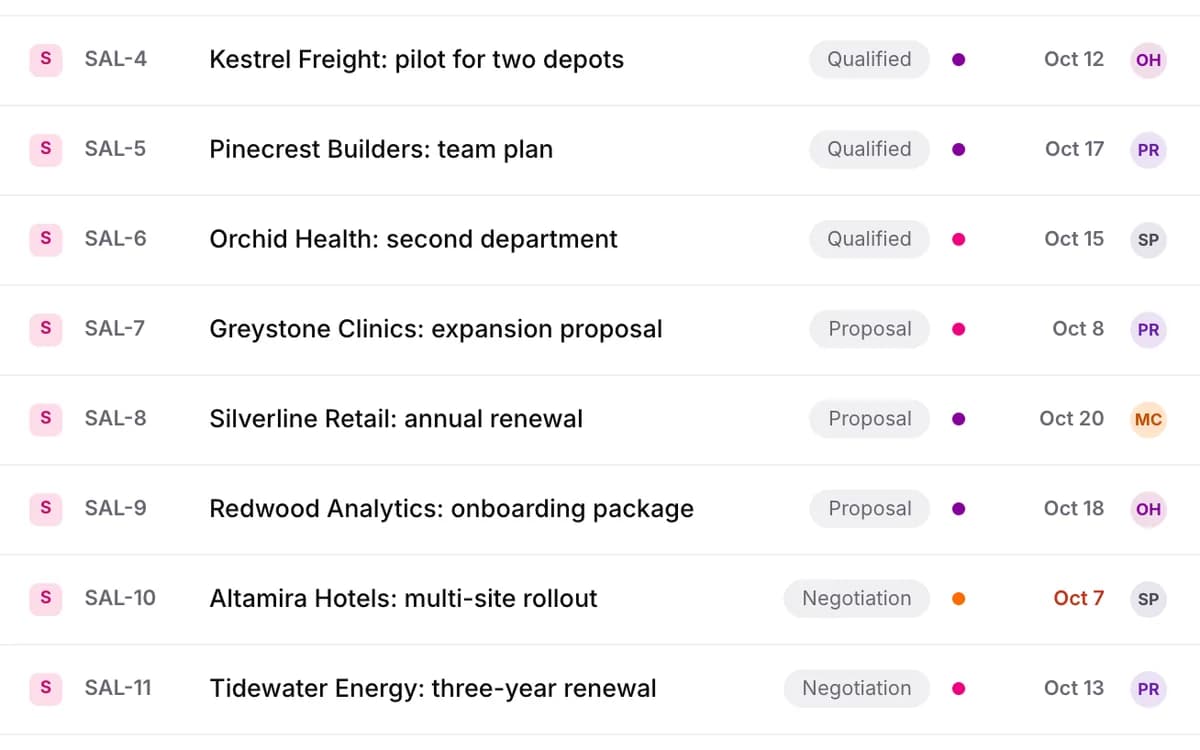
The List view shows every deal as a row with its stage, owner, priority and due date, so the weekly review runs down one page. My Work gives each person their own list of assigned items, grouped by due date.

  • List view with stage, owner, priority and due date
  • My Work grouped by due date
  • Daily digest email on plans that include email notifications
Close-up of the List view of the Q4 pipeline: one row per deal with its stage, priority, due date and owner.
Included

Everything your team needs, already built

  • Board

    A kanban board with filters and columns you can rename and reorder.

  • Waiting too long

    Open items with no update for more than 5 days, flagged on the card and counted in Insights.

  • Nudge

    A one-click reminder sent to the assignee of a flagged item.

  • My Work

    Everything assigned to you across projects, grouped by due date.

  • Insights

    Completed work, cycle time and a count of items waiting too long.

  • Notifications

    In-app and email updates, with an optional daily digest.

Getting started

Get set up in four steps

  1. Create a project

    Use one project for the pipeline, with a short key such as SAL for the item IDs.

  2. Rename the columns

    Replace the defaults with Leads, Qualified, Proposal, Negotiation and Won.

  3. Invite the team

    Add account owners and managers by email, and give each person the project role they need.

  4. Start moving deals

    Choose Board-only mode, add the open opportunities as cards and update them as each deal progresses.

Other teams

One workspace for every team

Marketing

Plan campaigns as epics, move content across a board, keep briefs and assets beside the work, and show leadership where each goal stands.

See how marketing works

Software

Check sprint scope against team capacity before you commit, triage bugs against response targets, and follow each release on the roadmap.

See how software works

Operations

Turn incoming requests into work items with response targets, write procedures where the team works, and keep a searchable record of who did what.

See how operations works
Questions

Frequently asked questions

Is IntelliTasks a CRM?

No. IntelliTasks is a work management tool. It tracks the tasks and stages of a pipeline, but it does not manage contact records or email history.

How does IntelliTasks decide that an item is waiting too long?

An open item with no update for more than 5 days is flagged. The threshold is fixed at 5 days and cannot be changed per column or project.

Can I use IntelliTasks without sprints?

Yes. Board-only mode gives you a kanban board without sprints, and you can switch modes at any time.

Can I bring my current pipeline across?

If it is in Jira or Trello, yes. Owners and admins can import a Jira CSV or JSON export or a Trello JSON export.

Find out what has been waiting.

Invite your team and see your first Waiting too long list in minutes.

Start free trial

14-day trial. No card required.

Book a walkthrough

See IntelliTasks on your own work with our team. Leave your details and we will contact you to arrange a time.

We use your details only to arrange this walkthrough.