IntelliTasks for operations teams

Handle every request, document every process, keep every record

Turn incoming requests into work items with response targets, write procedures where the team works, and keep a searchable record of who did what.

Start free trial

14-day trial. No card required.

  • Response and resolution targets
  • At risk at 75% of the window
  • Marked met when closed in time
Use cases

How operations teams use IntelliTasks

See it work

Three moments from a operations team's week

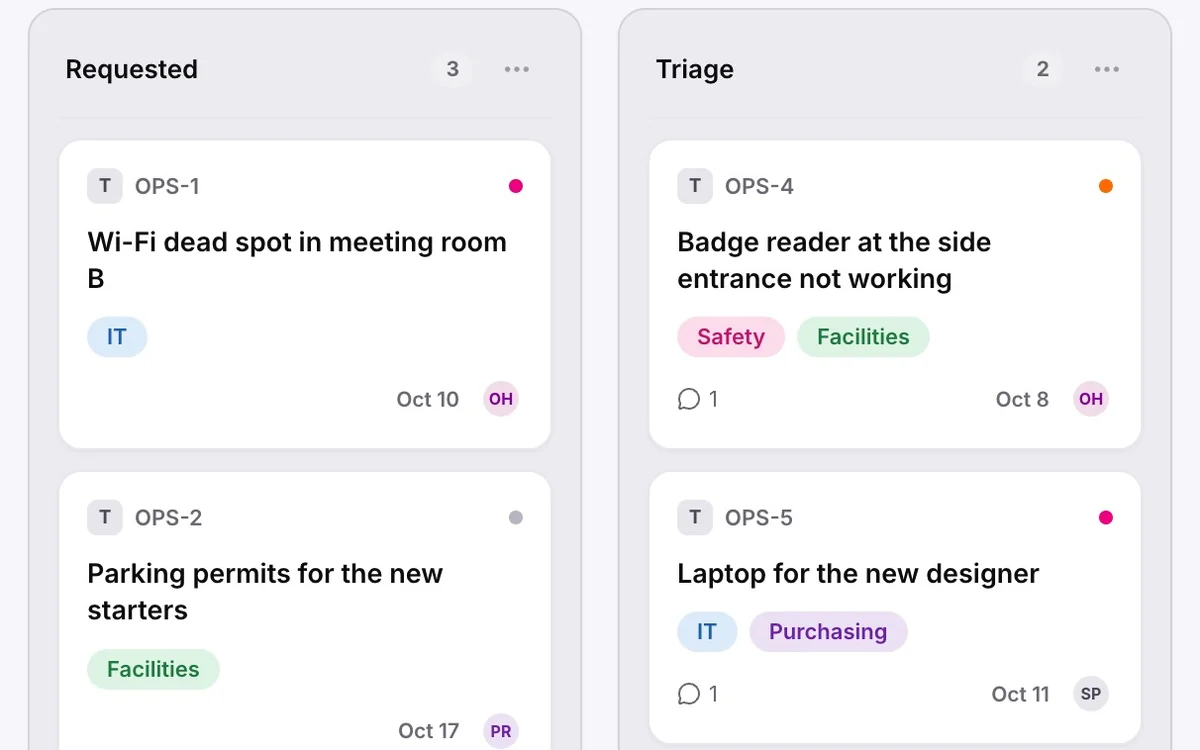
Short clips recorded in IntelliTasks with sample data. The board columns are a suggestion: they can be renamed and reordered to match how your team works.

A Wi-Fi request card is dragged from Requested through Triage, In progress and Waiting on others to Done.
  1. Requested
  2. Triage
  3. In progress
  4. Waiting on others
  5. Done

Requests with response targets

Set a response target, measured to the first comment, and a resolution target, measured to the last column, for each priority. The assignee is alerted when a request reaches 75% of its resolution window and again when it is overdue.

  • Targets in hours for each priority
  • States: on track, at risk, overdue, met or missed
  • Needs attention list at the top of the SLA page
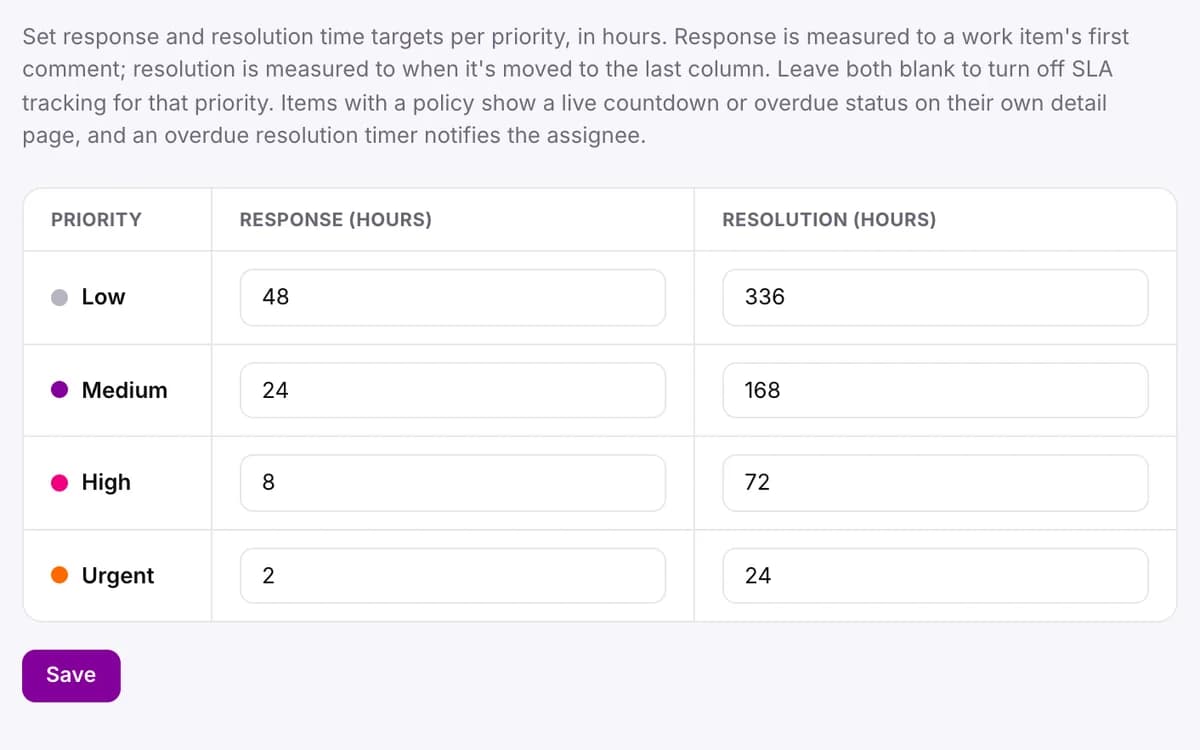
Close-up of the SLA policies on the SLA page: response and resolution targets in hours for Low, Medium, High and Urgent requests.

Procedures that stay up to date

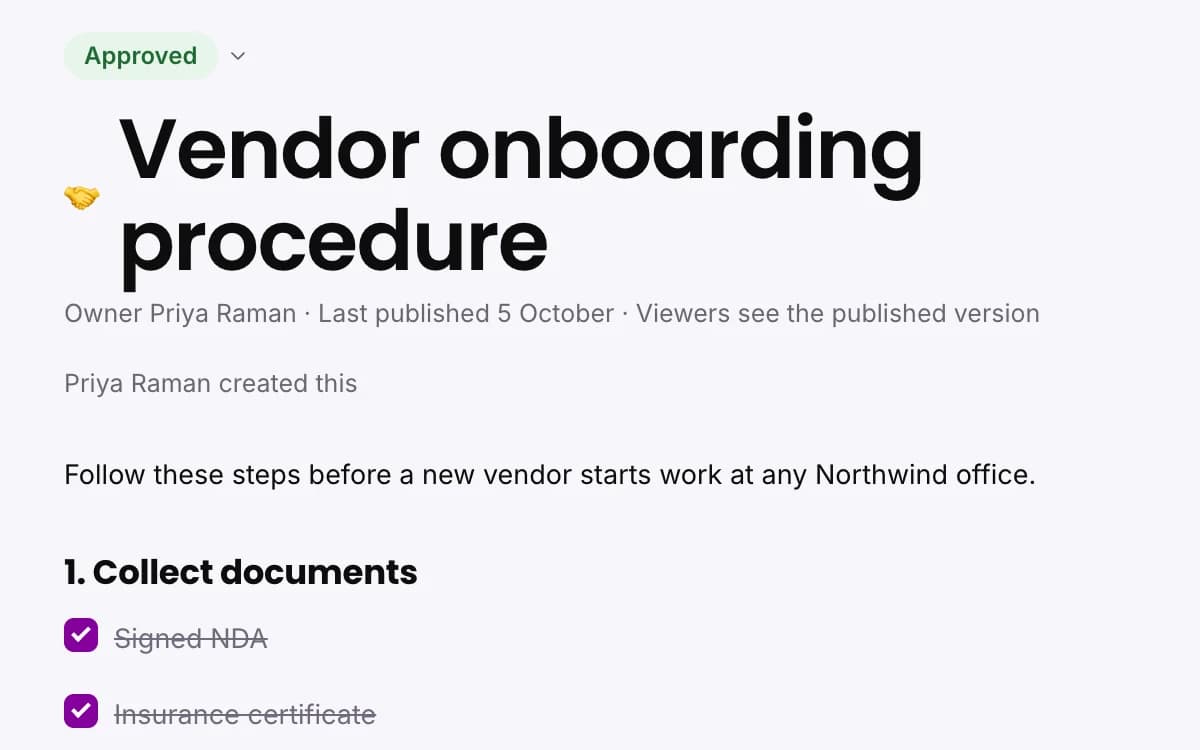
Documents is a built-in wiki with nested pages, version history and backlinks. Pages have Draft, In Review and Approved statuses, and the Company space holds organization-wide pages that only owners and admins can edit.

  • Version history for every page
  • Page status: Draft, In Review or Approved
  • Company space for handbooks and onboarding
Close-up of the Vendor onboarding procedure in Documents: its Approved status, owner and opening steps.

A record of who did what

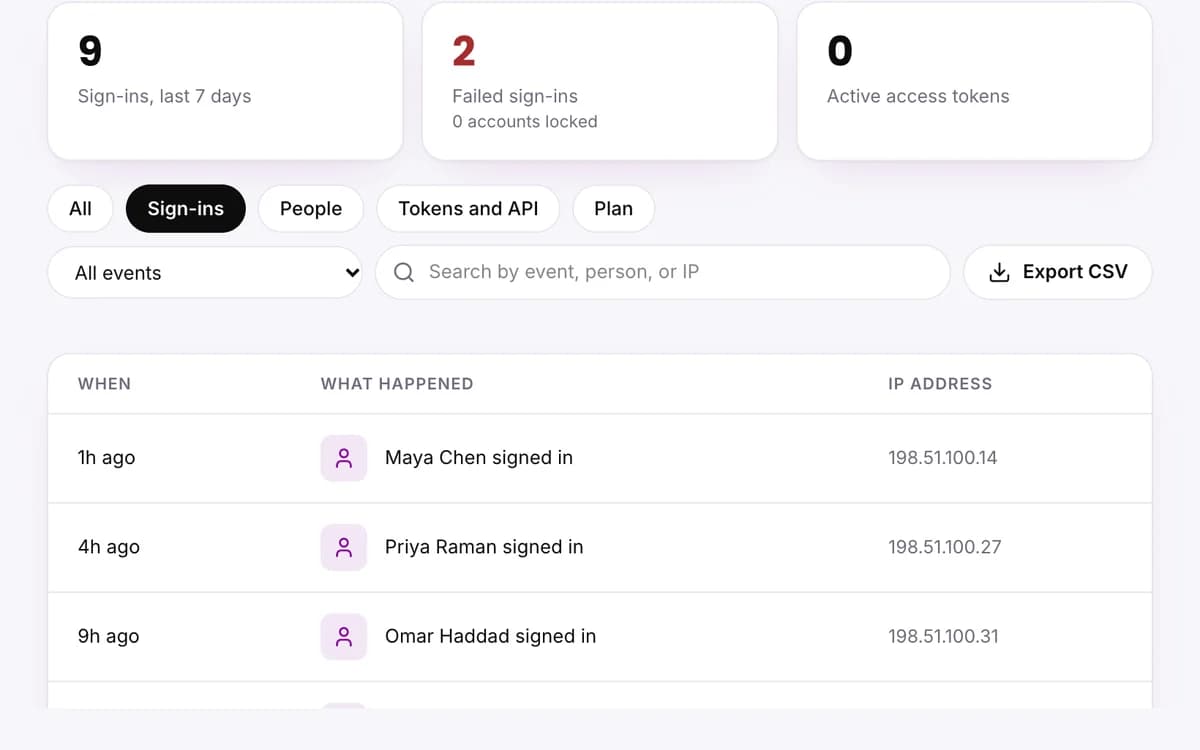
The audit log is available to owners and admins. It records sign-ins, failed sign-ins, invitations, package changes and token activity, and it can be filtered by type and exported to CSV.

  • Search and filter by event type
  • Export to CSV
  • Organization and project roles controlled separately
Close-up of the audit log with the Sign-ins filter applied: the Export CSV button and the latest sign-ins with their addresses.
Included

Everything your team needs, already built

  • SLA

    Response and resolution targets per priority, with at-risk and breach alerts.

  • Documents

    A wiki with version history, page status and a Company space.

  • Audit log

    A searchable record of sign-ins, invitations and token activity, with CSV export.

  • Members and roles

    Organization roles and project roles, set separately.

  • Files

    Every project file in one place, with ticket attachments grouped by ticket.

  • Notifications

    In-app and email updates, with an optional daily digest.

Getting started

Get set up in four steps

  1. Create a project

    Name it after the request queue, and choose a short key such as OPS.

  2. Rename the columns

    Set the board columns to Requested, Triage, In progress, Waiting on others and Done.

  3. Invite the team

    Add coordinators and approvers by email, and set the organization and project roles for each.

  4. Start moving requests

    Choose Board-only mode, enter the open requests and set response targets for each priority on the SLA page.

Other teams

One workspace for every team

Marketing

Plan campaigns as epics, move content across a board, keep briefs and assets beside the work, and show leadership where each goal stands.

See how marketing works

Sales

Track the pipeline on a board, see which accounts have gone quiet, and review the week with numbers instead of a long meeting.

See how sales works

Software

Check sprint scope against team capacity before you commit, triage bugs against response targets, and follow each release on the roadmap.

See how software works
Questions

Frequently asked questions

Can I use IntelliTasks without sprints?

Yes. Board-only mode gives you a kanban board without sprints, and you can switch modes at any time.

When does a request count as at risk?

At 75% of its response or resolution window, where it is shown as at risk. For the resolution target, the assignee is also notified at that point and again if the target is missed.

Who can see the audit log?

Organization owners and admins. They can search and filter it and export it to CSV.

Are uploaded files protected?

Uploaded files are encrypted at rest. Access to projects is controlled by organization and project roles.

Find out what has been waiting.

Invite your team and see your first Waiting too long list in minutes.

Start free trial

14-day trial. No card required.

Book a walkthrough

See IntelliTasks on your own work with our team. Leave your details and we will contact you to arrange a time.

We use your details only to arrange this walkthrough.